Methods To Data Recovery From External Hard Drive
 0
0
 0
0
External hard drives are invaluable for storing personal and professional data, from cherished childhood photos to important work documents. With their vast storage capacity, they have become the go-to solution for transferring and storing files. However, as with any technology, external hard drives are vulnerable to data loss. Whether due to accidental deletion, hardware failure, or corruption, data loss can be a serious issue. Fortunately, several methods can help recover lost or deleted data from an external hard drive. In this article, we’ll explore the 5 most practical methods for data recovery from an external hard drive.
1. Check the Recycle Bin (If Applicable)
Before diving into more complex recovery methods, the first step is to check if your files have simply been moved to the Recycle Bin. This is especially relevant if you accidentally deleted files from an external hard drive on a Windows system.
-
How to check: Open the Recycle Bin on your desktop, search for the deleted files, and restore them if they are present. If you don’t see the files, they may have been permanently deleted or lost due to other issues.
2. Use Data Recovery Software
One of the most effective ways to recover lost data from an external hard drive is through the use of professional data recovery software. These programs are specifically designed to retrieve lost, deleted, or corrupted files from various storage devices, including external hard drives, USB drives, and SD cards.
-
Recommended Tool: iTop Data Recovery
-
Why iTop? iTop Data Recovery is one of the most reliable and user-friendly recovery tools available today. It supports a wide range of file systems (FAT32, NTFS, and more) and storage devices (HDDs, SSDs, USB drives, SD cards, etc.).
-
How it works: iTop Data Recovery scans the external drive for any recoverable files. Once the scan is complete, it presents a list of recoverable files, allowing you to preview and select which ones to restore. With just a few clicks, you can recover your precious data.
-
3. Check Disk for Errors (CHKDSK)
If your external hard drive is not accessible or showing up with errors, using the built-in Windows tool CHKDSK may help identify and fix disk errors, potentially allowing you to access your data again.
-
How to run CHKDSK:
-
Connect your external hard drive to the computer.
-
Open Command Prompt as an administrator.
-
Type
chkdsk X: /f(where “X” is the letter of your external hard drive) and press Enter. -
Wait for the process to complete. If any errors are found, CHKDSK will attempt to fix them.
-
This method is useful when the drive is physically intact but has issues with its file system.
4. Restore from Backup (If Available)
If you regularly back up your data, restoring files from a previous backup is the simplest and most reliable method for recovering lost data from an external hard drive. External drives are often used as backup solutions, so if you’ve created a backup, your data may still be safe.
-
How to restore from a backup:
-
Access your backup software or cloud storage.
-
Select the files or folders you want to recover.
-
Follow the instructions to restore the data to your external hard drive or another device.
-
If you haven’t backed up your data in the past, now is the time to start regular backups to prevent future data loss.
5. Seek Professional Data Recovery Services
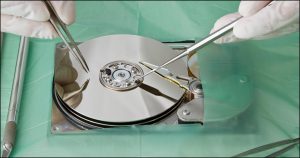
If none of the above methods work or if your external hard drive has suffered severe physical damage, it may be time to turn to professional data recovery services. These services are equipped with specialized tools and expertise to recover data from damaged, corrupted, or inaccessible drives.
-
When to seek professional help:
-
If the external hard drive is making strange noises (such as clicking or grinding), it may have mechanical damage.
-
If the drive is not recognized by your computer or is displaying error messages, professional recovery services can help diagnose and retrieve your data.
-
If the data is critical and cannot be recovered by software, professional technicians can perform in-lab recovery procedures.
-
Conclusion
Data loss from an external hard drive can be a distressing experience, but there are several methods available to recover lost or deleted files. Whether using data recovery software like iTop Data Recovery, checking for backups, or seeking professional help, the key is to act quickly and avoid using the drive to store new data. The sooner you attempt recovery, the higher the chances of retrieving your valuable files.
Remember, the best way to prevent data loss in the future is to regularly back up your important files. An external hard drive can be an excellent tool for this, but having a secondary backup (such as cloud storage) ensures your data is safe from unexpected issues.